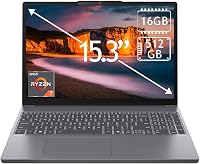
Lenovo IdeaPad Slim 3 Touchscreen Laptop Review: Worth It? (November 2026)
In this Lenovo IdeaPad Slim 3 review, the 15.6-inch touchscreen, Ryzen 7 processor, 16GB memory and 512GB SSD make it a strong fit for everyday Windows work at home or school. Choose a smaller laptop if you carry yours often.
On this page (8 sections)
- Lenovo IdeaPad Slim 3 review: who should buy it?
- How should you choose between these laptops?
- What can you do with the screen and touch input?
- Are its processor, memory and storage enough?
- What ports and everyday features should you check?
- How do you set up the IdeaPad Slim 3 well?
- What common buying and use mistakes should you avoid?
- Is the Lenovo IdeaPad Slim 3 worth considering?
In this Lenovo IdeaPad Slim 3 review, the 15.6-inch touchscreen, Ryzen 7 processor, 16GB memory and 512GB SSD point to a laptop for everyday Windows work at home, school or a small office. Its full-size screen is handy at a desk, though its 3.17 kg weight makes it a poor match for carrying around all day.
The Lenovo runs Windows and has integrated AMD Radeon graphics, Wi-Fi 6, Bluetooth 5.2, a 720p camera and a numeric keypad. For buyers comparing the brand more broadly, see our guide to whether Lenovo laptops are reliable and our roundup of Lenovo laptops for home and work.
Lenovo IdeaPad Slim 3 review: who should buy it?
The IdeaPad Slim 3 is a good choice for students, home users and office workers who want a large touchscreen Windows laptop. Its memory and storage suit documents, browser tabs, video calls and common productivity apps without requiring you to start with a bare-bones configuration.
It makes the most sense when the laptop will spend much of its time on a desk. The 15.6-inch screen gives you a practical workspace for reading documents and keeping a browser beside another window, and touch input can make scrolling and selecting items more direct.
Lenovo IdeaPad Slim 3 15.6-inch Touchscreen (Ryzen 7): Best for home study

- 15.6-inch Full HD touchscreen
- AMD Ryzen 7 5825U
- 16GB DDR4 memory
- 512GB SSD
A large-screen Windows laptop with touch input, 16GB memory and a 512GB SSD. It suits document work, browsing and streaming when you have room for a 15.6-inch computer.
Pros
- Full HD touchscreen
- Ryzen 7 5825U with 8 cores
- 16GB DDR4 memory
- 512GB SSD
Cons
- 15.6-inch size may be less convenient to carry
- No backlit keyboard
The numeric keypad is useful for spreadsheets and frequent number entry. Skip this configuration if you need a backlit keyboard, a light travel laptop or a machine chosen for demanding graphics work.
A touchscreen is most useful when you expect to tap and scroll regularly. It does not make this standard clamshell laptop a tablet, so compare whether a touchscreen laptop is worth it if you mostly type and use a mouse.
What stands out in this Lenovo IdeaPad Slim 3 review?
The strongest fit is the mix of a Ryzen 7 processor, 16GB memory, a 512GB SSD and touch input in a 15.6-inch format. That combination serves everyday productivity and entertainment while leaving room for a useful number of apps and personal files.
The display is Full HD with a 60Hz refresh rate. It suits typical documents, web pages and streaming, but shoppers who work with fine visual detail should compare panel resolution and other display features before choosing.
How should you choose between these laptops?
Choose the Lenovo when you want the combination of a Ryzen 7 processor, touch input, and a numeric keypad for a desk-based routine. If your priority differs, the alternatives offer distinct trade-offs instead of a clear upgrade for every buyer.
| Laptop | Key details | Score |
|---|---|---|
| Lenovo IdeaPad Slim 3 15.6-inch Touchscreen (Ryzen 7) | Ryzen 7 5825U, 16GB DDR4, 512GB SSD | 8.5 |
| Acer Aspire Go 15 Touch (Ryzen 5, 16GB, 512GB) | Ryzen 5 7520U, 16GB LPDDR5, 512GB SSD | 8.1 |
| Dell Inspiron 15 3535 Touchscreen (Ryzen 7) | Ryzen 7 7730U, 16GB, 512GB SSD, Wi-Fi 5 | 8.1 |
| Dell Inspiron 15 3530 Touchscreen (Core i5-1334U) | Intel Core i5-1334U, Windows 11 Home in S mode | 7.9 |
Acer Aspire Go 15 Touch (Ryzen 5, 16GB, 512GB): Best for Wi-Fi 6

- 15.6-inch Full HD touchscreen
- AMD Ryzen 5 7520U
- 16GB LPDDR5 memory
- 512GB SSD
A 15.6-inch touchscreen alternative with 16GB memory and 512GB SSD. Consider it if you prefer Acer or want to compare its connectivity and keyboard features.
Pros
- Full HD touchscreen
- 16GB LPDDR5 memory
- 512GB SSD
- Wi-Fi 6
Cons
- Ryzen 5 7520U rather than a Ryzen 7 processor
The Acer Aspire Go 15 suits buyers who want a touchscreen laptop with Wi-Fi 6 and 16GB of memory. Its Ryzen 5 processor is a different choice from the Lenovo's Ryzen 7, so compare the two if processor model is central to your decision.
Dell Inspiron 15 3535 Touchscreen (Ryzen 7): Best for Dell fans

- 15.6-inch Full HD IPS touchscreen
- AMD Ryzen 7 7730U
- 16GB memory
- 512GB SSD
A Dell alternative with a 15.6-inch touchscreen, Ryzen 7 processor, 16GB memory and 512GB SSD. It has Wi-Fi 5.
Pros
- Ryzen 7 7730U with 8 cores
- Full HD IPS touchscreen
- 16GB memory and 512GB SSD
- SD card reader
Cons
- Wi-Fi 5
Choose the Dell Inspiron 15 3535 if you prefer a Dell with a Ryzen 7 processor, touch display and SD card reader. It uses Wi-Fi 5, a useful distinction if you specifically want Wi-Fi 6.
Dell Inspiron 15 3530 Touchscreen (Core i5-1334U): Best for Intel preference

- 15.6-inch Full HD touchscreen
- Intel Core i5-1334U
- Windows 11 Home in S mode
- Memory and SSD options vary
This Dell gives you an Intel option with a 15.6-inch touchscreen. Confirm the chosen memory and storage configuration, and check whether Windows 11 S mode fits your app needs.
Pros
- Intel Core i5-1334U
- Full HD touchscreen
- S mode can be switched to Windows 11 Home
Cons
- Memory and storage configurations vary
- Computer has been resealed for upgrades
The Dell Inspiron 15 3530 is the Intel option here, but memory and storage depend on the configuration selected. It comes with Windows 11 Home in S mode, which can be switched to Windows 11 Home; check that your required apps will work with your chosen setup.
What can you do with the screen and touch input?
The large Full HD touchscreen suits seated work, browsing and video. Touch is convenient for quick navigation, while a keyboard and touchpad remain more practical for long writing sessions and precise pointer work.
At 3.17 kg, the Lenovo is heavy to carry between classes or on a daily commute. If portability is a priority, compare the size and weight of other options using our guide to what laptop size you need.
Touchscreens show fingerprints quickly. Wipe the panel gently with a clean microfiber cloth, and follow Lenovo's care guidance rather than applying household cleaner directly to the screen.
Our laptop screen cleaning guide covers safe cleaning steps.
Are its processor, memory and storage enough?
The Ryzen 7 5825U, 16GB of memory and 512GB SSD are a strong everyday combination for office apps, study tasks, browsing and video calls. They also leave room to switch between common programs without treating each open tab as a separate workload.
The graphics are integrated AMD Radeon graphics. That is a general-purpose setup, so choose a different class of laptop if your main needs involve demanding games, 3D work or specialized creative software.
A 512GB drive can hold apps and a useful collection of local files, but large video projects and photo libraries can take up space quickly. Use our guide to how much laptop storage you need to judge whether you keep most files locally or in online storage.
The 16GB memory is suited to everyday multitasking. If you routinely run heavier software or keep many demanding apps open, our laptop RAM guide explains which needs call for more memory.
What ports and everyday features should you check?
The Lenovo includes Wi-Fi 6, Bluetooth 5.2, a 720p HD camera and an SD card reader. Its connections include USB-A, USB-C, HDMI, a combined headphone and microphone jack, and a power port.
USB-C supports DisplayPort, and HDMI gives you another way to connect an external display. Before buying, make a short list of the devices you use most, such as a monitor, printer, headset or storage drive, then check that the ports match.
The configuration is described with Windows 11 Home, while one part of its specifications identifies Windows 11 Pro. SSD capacity also differs in the longer description, so confirm the exact operating system and drive capacity for the configuration you are considering.
A 65W adapter and 32GB USB drive are included. The laptop has an Arctic Grey plastic casing, which gives you a straightforward finish rather than a metal-bodied design.
How do you set up the IdeaPad Slim 3 well?
Start by placing the laptop on a stable surface near power and connecting to your Wi-Fi network. During Windows setup, install updates, choose a strong sign-in method and review privacy and backup settings before adding your everyday apps.
Next, check the camera, sound, touchpad, touchscreen, Wi-Fi and Bluetooth with the devices you expect to use. Connect an external monitor through HDMI or supported USB-C video if you plan to work with a larger desktop display.
Set up a backup routine before filling the SSD with important documents. Keep school or work files in a second location, such as an approved cloud account or an external drive, so a laptop problem does not leave you with only one copy.
For a fuller first-day checklist, follow our step-by-step guide to setting up a new laptop. A few minutes spent installing updates and checking your main devices can prevent avoidable friction later.
What common buying and use mistakes should you avoid?
The biggest buying mistake is choosing by the Ryzen 7 name alone. Screen size, weight, keyboard lighting, graphics and the exact Windows and storage configuration all affect whether this laptop fits your routine.
Do not assume every configuration described in the product information is identical. Verify the drive capacity and Windows edition you will receive, particularly if you need a specific edition for work or school.
Another mistake is treating a 15.6-inch touchscreen as a tablet replacement. This model is a clamshell laptop, and touch input complements the keyboard and touchpad rather than replacing them.
When using the laptop, avoid blocking its vents with bedding or soft fabric, and do not carry it by the screen. Keep it on a firm surface, use a padded bag when transporting it, and store large files elsewhere if you want to preserve space on the SSD.
Is the Lenovo IdeaPad Slim 3 worth considering?
Choose the Lenovo if you want a large touchscreen for desk-based work, school or home use, and value its Ryzen 7 processor, 16GB memory, 512GB SSD and numeric keypad. Choose the Acer if Wi-Fi 6 is a priority in a comparable touchscreen laptop, or the Dell Ryzen 7 if you prefer Dell and want an SD card reader.
Skip the Lenovo if daily carrying weight, a backlit keyboard or specialized graphics performance matters more than screen space and touch. This Lenovo IdeaPad Slim 3 review points to a practical everyday Windows laptop, provided you confirm the exact Windows edition and storage configuration before buying.
Frequently asked questions
Is the Lenovo IdeaPad Slim 3 touchscreen good for everyday use?
Yes, the Lenovo IdeaPad Slim 3 touchscreen suits everyday Windows tasks such as documents, browsing, streaming and video calls. Its Ryzen 7 processor, 16GB memory and SSD give you a capable starting point, while the 15.6-inch screen is easier to use at a desk than to carry all day.
What screen does the Lenovo IdeaPad Slim 3 have?
This configuration has a 15.6-inch Full HD touchscreen with a 1920 x 1080 resolution and 60Hz refresh rate. The size gives documents and web pages room on screen, and touch input helps with scrolling or selecting items when you are seated close to the laptop.
How much memory and storage does this IdeaPad Slim 3 have?
This configuration pairs 16GB of DDR4 memory with a 512GB SSD. This combination suits common apps, documents and everyday multitasking.
If you keep a large offline photo or video library, estimate your storage needs before choosing a laptop.
Does the Lenovo IdeaPad Slim 3 have a backlit keyboard?
No, this configuration does not have a backlit keyboard. It has a numeric keypad for number entry, but you'll need a well-lit workspace if you often type in dim rooms.
Choose another configuration if illuminated keys are a must-have.