Is a Touch Screen Laptop Worth It?
A touch screen laptop is worth it if you regularly tap, scroll, or write on the display; it adds little value if you mainly type and use a mouse. For the right fit, compare the screen, laptop shape, pen support, and the rest of the specs.
On this page (8 sections)
- Is a touch screen laptop worth it for everyday use?
- What can you do with a laptop touchscreen?
- What are the downsides of a touch screen laptop?
- How should you compare touch screen laptops?
- Is a touchscreen laptop better for school or work?
- How do you set up and care for a touchscreen laptop?
- Who should skip a touch screen laptop?
- Is a touch screen laptop worth it for you?
A touch screen laptop is worth it if you regularly use the display to tap, scroll, or write with a compatible pen. If you mainly type and use a mouse, touch may add little to your routine, so compare the screen and other features before paying for it.
Touch can make quick tasks feel natural, especially when you’re reading, browsing, or showing something to another person. It won’t make a laptop faster by itself, and it doesn’t guarantee pen support or a convertible hinge.
Is a touch screen laptop worth it for everyday use?
A touchscreen makes sense when you can name tasks you’ll do by touch several times a week. Tapping links, zooming into maps, and scrolling through long pages are common examples.
It can also help when you’re standing, sharing a screen, or using an app designed for finger input. For long writing sessions, a keyboard remains more practical.
Think about your current habits. If you often reach for the screen and wish it responded, touch may save small steps; if your hand stays on the keyboard or mouse, the feature may sit unused.
What can you do with a laptop touchscreen?
A touchscreen lets you tap, swipe, scroll, and zoom directly on the display. The specific benefits depend on your apps and whether the laptop can fold or convert into another shape.
Touch can help you navigate web pages and documents, select large on-screen controls, and move through photo galleries. It can also make a laptop easier to share when someone beside you needs to point to or select an item.
A standard clamshell screen still faces the keyboard, so using it like a tablet may feel awkward. For drawing or handwritten notes, confirm that the exact model supports a compatible pen; touch alone doesn’t promise pressure sensitivity or palm rejection.
Is a touch screen laptop worth it for drawing?
A touchscreen may suit basic drawing if it supports a compatible stylus and the drawing app you plan to use. The touch feature alone doesn’t confirm pen pressure, palm rejection, or a comfortable writing position.
Check pen compatibility for the exact model, including whether you need to buy the pen separately. If sketching is a main use, compare those details with a tablet or a convertible laptop before deciding.
What are the downsides of a touch screen laptop?
The main downsides are fingerprints, possible extra cost, and limited value for keyboard-focused work. Touch also doesn’t guarantee a better display, pen support, or longer battery life.
A glossy screen can show fingerprints quickly, so you may need to clean it more often. Follow our guide to cleaning a laptop screen safely for gentle care steps.
Touchscreen models come in different shapes. Some are standard laptops with touch displays, while a 2 in 1 laptop can fold back or change form, so check the hinge design if you want to use it like a tablet.
Don’t assume battery life based on touch alone. Look for results for the exact model and the screen settings you expect to use; our guide to making laptop battery last longer covers practical ways to stretch a charge.
How should you compare touch screen laptops?
Compare screen size and resolution, laptop shape, pen support, memory, storage, and the apps you need. A touchscreen is one part of a larger buying decision.
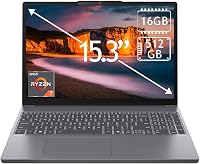
The Lenovo IdeaPad Slim 3 has a 15.3-inch 1920 x 1200 touchscreen, 16GB of memory, and a 512GB SSD. It suits someone who wants a sharper, taller screen for documents and browsing, and can be skipped if you want a convertible design or don’t expect to use touch.
The HP 17.3-inch touchscreen has a 1600 x 900 display and 16GB of memory. Its large screen suits a desk-based setup for viewing documents side by side; skip it if you need a smaller laptop to carry around often.
The Acer Aspire Go 15 Touch pairs a 15.6-inch 1920 x 1080 touchscreen with 16GB of memory and a 512GB SSD. It suits someone who wants a conventional clamshell shape with touch, while buyers who need a folding or detachable design should look elsewhere.
The Dell 15.6-inch laptop has a 1920 x 1080 display, 8GB of memory, and an Intel Core 3 processor. It is a non-touch option for someone who mainly types and uses a mouse, and offers a useful comparison if you’re deciding whether touch is worth prioritizing.
For a broader checklist, read what to look for when buying a laptop. It can help you weigh the screen against memory, storage, and other needs.
Is a touchscreen laptop better for school or work?
A touchscreen can help with reading, browsing, and quick navigation, but school and office tasks often depend more on typing comfort, software, and battery life. Choose based on the work you do most.
For note-taking, check pen support and whether the screen folds or detaches into a useful position. For spreadsheets, reports, or long essays, keyboard layout and screen size may matter more than touch.
Check which apps you need and whether they run on the laptop’s operating system before buying. Our laptop guide for people and tasks can help match a computer to your routine, and the 2 in 1 laptop guide can help if you want a convertible design.
How do you set up and care for a touchscreen laptop?
Set up a touchscreen as you would any new laptop, then check that touch input and any supported pen work as expected. Install system updates, connect to Wi-Fi, and sign in to the accounts you need.
If you plan to write or draw, confirm pen compatibility before buying accessories. Try a few common gestures in your browser and main apps, then adjust display brightness and touch settings to suit your workspace.
Keep food and drinks away from the screen, and clean smudges with a soft, suitable cloth. Avoid pressing hard or using a rough material that could scratch the display.
For a step-by-step start, see how to set up a new laptop. A little time spent setting it up can help you confirm that its screen, apps, and accessories fit the way you plan to work.
Who should skip a touch screen laptop?
Skip touch if you don’t expect to use it and a comparable non-touch model better fits your needs. Paying for a feature you rarely use won’t improve typing comfort, app compatibility, or computing speed.
A mouse and keyboard may be more comfortable for long work sessions. You may also prefer a non-touch screen if smudges bother you or you mainly use your laptop at a desk.
Avoid assuming that every touchscreen folds into a tablet or works with a stylus. Check those features directly if they matter to your plans.
Is a touch screen laptop worth it for you?
A touch screen laptop is worth it when touch supports a regular task, such as reading, browsing, or writing with a compatible pen. Pick a standard touchscreen clamshell if you want direct input without a convertible design, and choose a non-touch model if you mostly type and use a mouse.
For a larger-screen desk setup, the HP’s 17.3-inch display is the clearest fit in this group. The Lenovo and Acer offer 15-inch-class touchscreens, while the Dell gives you a non-touch comparison; see what laptop you should buy to weigh those choices against your full routine.
Frequently asked questions
Is a touch screen laptop better than a regular laptop?
A touch screen laptop is better when you often tap, scroll, sketch, or work with touch-friendly apps. A regular laptop can be the better fit if you mostly type, use a mouse, and want to avoid paying for a feature you rarely use.
Does a touch screen laptop use more battery?
Touch hardware can use some power, but battery life depends on the whole laptop, including its screen, processor, battery, and settings. Check independent results for the exact model when battery life matters, and compare results under similar brightness and workloads.
Can you use a stylus on any touch screen laptop?
No. Touch input does not guarantee stylus support or pressure sensitivity.
It also may not support palm rejection, so check the exact model's compatibility details and whether a pen is included before buying, especially if you plan to write or draw often.
Is a 2 in 1 laptop the same as a touch screen laptop?
No. A 2 in 1 laptop has a hinge or detachable design that lets it work in more than one form, while a touch screen laptop may keep a standard clamshell shape.
Some 2 in 1 models have touchscreens, but the terms don't mean the same thing.