8 Best Laptops for Elderly Users (November 2026)
The best laptops for older adults include the Apple MacBook Neo 13-inch for Apple users, the Lenovo IdeaPad Slim 3 15.6-inch Touchscreen (Ryzen 7) for Windows touch, and the Acer Chromebook Plus 514 Touch for Google app users.
On this page (9 sections)
- How to choose the best laptop for elderly users
- Which laptops suit different needs?
- Should you choose a larger screen or a touchscreen?
- How much memory and storage is enough?
- Which operating system will feel familiar?
- How do you set up a laptop for an older adult?
- What common laptop buying mistakes should you avoid?
- How can you care for and use a laptop comfortably?
- Which laptop should you choose?
The best laptop for elderly users who want a large screen is the HP 17.3-inch Laptop, which pairs Windows 11 Home with a Full HD display, 16GB memory, and a physical camera shutter. For a touchscreen, consider the Lenovo IdeaPad Slim 3 or Acer Aspire Go 15 Touch; for a smaller Mac, look at the Apple MacBook Neo.
The right choice depends on what the person already knows and what they want to do. Email, video calls, photos, browsing, and documents work across several kinds of laptops, but familiar software can make the change easier.
Use this guide to compare screen size, touch input, camera features, memory, and storage. Our plain laptop buying guide helps if you’re weighing several tasks or users.
Our picks at a glance
-
1

-
2
 Best for Windows touch
Lenovo IdeaPad Slim 3 15.6-inch Touchscreen (Ryzen 7)
8.5/10 our score
See it on Amazon -
3

- 4
 Check it
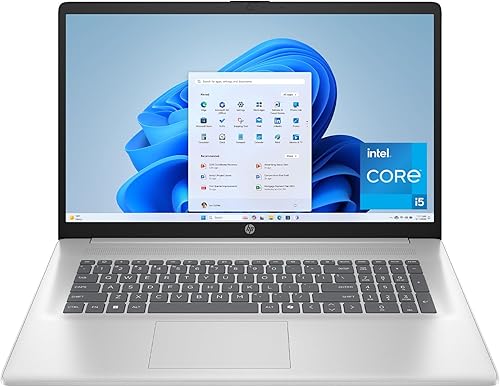
HP 17.3-inch Laptop (Core i5, 16GB, 512GB)
Best for a desk setup - 5
 Check it
Acer Aspire Go 15 Touch (Ryzen 5, 16GB, 512GB)
Best for mid-size touch - 6
 Check it
Dell 15.6-inch Laptop (Ryzen 5 7520U)
Best for number entry - 7
 Check it
HP OmniBook 3 17.3-inch (Ryzen 3, 8GB, 512GB)
Best for frequent calls - 8
 Check it
ASUS Chromebook CM15 (8GB, 128GB)
Best for basic browsing
How to choose the best laptop for elderly users
The best choice starts with the person’s routine, preferred system, and workspace. Screen size and memory matter, but a laptop that opens familiar apps and feels comfortable to use is more helpful than one with the longest specification list.
Ask what the person does most often. Someone who checks email, browses, and makes calls has different needs from someone who edits photos, keeps large files, or uses a specific Windows program.
Make the screen and input method part of the decision. A large screen can give more room for content, while touch input can make selecting a button feel more direct; some users will still prefer a mouse and keyboard.
Think about where the laptop will live. A 17.3-inch model suits a stable desk, while a smaller laptop is easier to carry between rooms or on a trip.
| Product | Best for | Screen | Memory and storage | System | Our score |
|---|---|---|---|---|---|
| Apple MacBook Neo 13-inch | Apple users | 13 in | 8GB unified memory, 256GB SSD | macOS | 8.8 |
| Lenovo IdeaPad Slim 3 15.6-inch Touchscreen (Ryzen 7) | Windows touch | 15.6 in, 1920 x 1080, touchscreen | 16GB RAM, 512GB SSD | Windows 11 | 8.5 |
| Acer Chromebook Plus 514 Touch | Google app users | 14 in, 1920 x 1200, touchscreen | 8GB memory, 256GB SSD | ChromeOS | 8.5 |
| HP 17.3-inch Laptop (Core i5, 16GB, 512GB) | a desk setup | 17.3 in, 1920 x 1080 | 16GB RAM, 512GB SSD | Windows 11 Home | 8.3 |
| Acer Aspire Go 15 Touch (Ryzen 5, 16GB, 512GB) | mid-size touch | 15.6 in, 1920 x 1080, touchscreen | 16GB RAM, 512GB SSD | Windows 11 Home | 8.1 |
| Dell 15.6-inch Laptop (Ryzen 5 7520U) | number entry | 15.6 in, 1920 x 1080 | Windows 11 Home | 8.0 | |
| HP OmniBook 3 17.3-inch (Ryzen 3, 8GB, 512GB) | frequent calls | 17.3 in, 1920 x 1080 | 8GB RAM, 512GB SSD | Windows 11 Home | 7.8 |
| ASUS Chromebook CM15 (8GB, 128GB) | basic browsing | 15.6 in, 1920 x 1080 | 8GB RAM, 128GB storage | ChromeOS | 7.5 |
Which laptops suit different needs?
These laptops suit different preferences: a compact Mac, Windows touchscreens, Chromebooks for Google apps, and large Windows displays. Start with the person’s familiar system, then compare screen size, portability, and storage.
Which best laptop for elderly Mac users should you choose?
The Apple MacBook Neo 13-inch is the compact pick for someone who already uses an iPhone or Mac. Its 13-inch Liquid Retina display is smaller than the other screens in this roundup, so consider viewing distance and preferred text size before choosing it.
The 1080p FaceTime HD camera and dual-mic array suit video calls. Apple says the laptop offers up to 16 hours of battery life, though actual use varies.
It runs macOS with 8GB unified memory and 256GB SSD storage. Apple also describes features that connect the Mac with an iPhone, such as continuing an email between devices.
Choose it when the person values macOS familiarity and a portable aluminum design. Skip it if the main need is a broad screen for reading at a desk.
Apple MacBook Neo 13-inch: Best for Apple users
- 13-inch Liquid Retina display
- 1080p FaceTime HD camera
- Up to 16 hours of battery life
A compact Mac for someone who prefers macOS and uses an iPhone. Its 13-inch screen and 8GB unified memory make it a better fit for everyday tasks than a large-screen workstation.
Pros
- 1080p FaceTime HD camera
- Durable aluminum enclosure
- Works with iPhone features
Cons
- 13-inch screen may feel small for some readers
- 8GB unified memory
Which best laptop for elderly Windows users offers touch input?
The Lenovo IdeaPad Slim 3 suits a Windows user who wants a 15.6-inch Full HD touchscreen. Tapping the screen can replace some touchpad gestures, though the user may still prefer a mouse or keyboard.
It has 16GB memory, a 512GB SSD, and a 720p HD camera. Windows 11 is a natural fit for someone who already uses Windows software at home.
The screen size sits between the 13-inch MacBook Neo and 17.3-inch HP models. Its 3.17 kg weight makes it less convenient to carry often than a smaller laptop.
Choose it if Windows and touch input are priorities. Lenovo’s reliability guide can help with the separate question of choosing a brand for everyday use.
Lenovo IdeaPad Slim 3 15.6-inch Touchscreen (Ryzen 7): Best for Windows touch
- 15.6-inch Full HD touchscreen
- 16GB memory
- Windows 11
A Windows touchscreen with a mid-size display, 16GB memory, and 512GB SSD. Pick it for someone who wants direct touch input and is comfortable with Windows.
Pros
- Full HD touchscreen
- 16GB memory and 512GB SSD
- 720p HD camera
Cons
- No backlit keyboard
- 3.17 kg
Which best laptop for elderly Google app users fits ChromeOS?
The Acer Chromebook Plus 514 Touch is the ChromeOS pick for someone who uses web apps and wants touch input. Its 14-inch WUXGA display has an anti-glare coating, and it has an FHD camera with a privacy shutter.
ChromeOS includes Google apps such as Gmail, Docs, Photos, and YouTube. It works differently from Windows and macOS, so choose it when the user knows or is ready to learn that interface.
This model has 8GB memory and a 256GB SSD. It also includes a protective sleeve, useful if it will be carried between rooms or taken on trips.
Choose it for touch input, Google apps, and a camera shutter. If the person relies on Microsoft Office, read our guide to Microsoft Office on Chromebooks before deciding.
Acer Chromebook Plus 514 Touch: Best for Google app users
- 14-inch WUXGA touch display
- ChromeOS
- FHD camera with privacy shutter
A touchscreen Chromebook for someone who uses Google apps and is comfortable with ChromeOS. It adds an anti-glare display, FHD camera, and privacy shutter.
Pros
- Touchscreen with anti-glare coating
- FHD camera with privacy shutter
- Includes protective sleeve
Cons
- ChromeOS differs from Windows and macOS
- 8GB memory
Which best laptop for elderly readers gives the broadest view?
The HP 17.3-inch Laptop is the large-screen Windows choice. Its 17.3-inch Full HD IPS display gives more viewing area than the smaller options, which suits someone who prefers a broad screen at a desk.
It pairs Windows 11 Home with 16GB memory and a 512GB SSD. The physical camera shutter gives the user a visible way to cover the camera, and the HP True Vision HD camera supports video chat.
The larger screen means a bigger laptop to place, move, and store. Its stated battery life is 8 hours, so consider whether it can stay near a power outlet.
Choose this model if screen size and Windows are the main priorities. Skip it if the laptop must be carried often or stored in a small space.
HP 17.3-inch Laptop (Core i5, 16GB, 512GB): Best for a desk setup
- 17.3-inch Full HD IPS display
- 16GB RAM and 512GB SSD
- Physical camera shutter
A large-screen Windows laptop with 16GB memory, 512GB SSD, and a physical camera shutter. It suits someone who mostly uses a laptop at a desk.
Pros
- 17.3-inch Full HD IPS display
- 16GB memory and 512GB SSD
- Physical camera shutter
Cons
- Large screen means a larger laptop
- 8-hour battery life
Which best laptop for elderly users balances touch and screen size?
The Acer Aspire Go 15 Touch offers another Windows touchscreen option. Its 15.6-inch Full HD display, 16GB memory, and 512GB SSD suit browsing, documents, photos, and video calls.
Touch can help someone who finds a touchpad hard to control, but the user should be able to position the laptop comfortably for tapping. This model also includes Wi-Fi 6 and a webcam.
Acer describes battery life of up to 12 to 15 hours, while its specifications give 12 hours. Treat those figures as estimates because battery time depends on use.
Choose it when touch controls matter and a mid-size screen feels right. Compare it with the Lenovo if you are deciding between two 15.6-inch Windows touch models.
Acer Aspire Go 15 Touch (Ryzen 5, 16GB, 512GB): Best for mid-size touch
- 15.6-inch Full HD touchscreen
- 16GB RAM and 512GB SSD
- Windows 11 Home
A Windows touchscreen with 16GB memory and 512GB SSD. It fits someone who wants a mid-size display and direct touch controls.
Pros
- Full HD touchscreen
- 16GB memory and 512GB SSD
- Wi-Fi 6
Cons
- 3.18 kg
- Battery life varies with use
Which best laptop for elderly users entering numbers should you consider?
The Dell 15.6-inch Laptop stands out for its separate numeric keypad and lifted hinge. The number pad may help someone who enters figures often, while the hinge raises the keyboard to a typing angle.
It has a built-in HD webcam and runs Windows 11 Home. Memory and storage are unspecified, so check the configuration before choosing a specific version.
Dell includes 1 Year Onsite Service for issues covered by its Limited Hardware Warranty that cannot be resolved remotely. Review the warranty coverage and service terms before buying.
Choose it if the number pad and typing angle matter more than touch input. Skip it if you need confirmed memory and storage details before comparing options.
Dell 15.6-inch Laptop (Ryzen 5 7520U): Best for number entry
- 15.6-inch display
- Separate numeric keypad
- Lifted hinge
A Windows laptop with a separate number pad, lifted hinge, and HD webcam. Check the memory and storage configuration before choosing a version.
Pros
- Separate numeric keypad
- Lifted hinge for a typing angle
- Built-in HD webcam
Cons
- No fingerprint reader
- Memory and storage are not specified here
Which best laptop for elderly video callers has a large screen?
The HP OmniBook 3 combines a 17.3-inch Full HD IPS display with an FHD camera and Windows 11 Home. It is a large-screen alternative with 8GB memory and a 512GB SSD.
HP describes noise reduction for calls and camera HDR auto-switching. Those features may help for regular video calls, but comfort with the video app and its controls still matters.
The large format makes this a desk-first choice for many households. Its 8GB memory is lower than the 16GB options in this roundup, so consider how many apps the user keeps open.
Choose it when a large screen and call features matter. Choose the HP Core i5 model instead if you want 16GB memory.
HP OmniBook 3 17.3-inch (Ryzen 3, 8GB, 512GB): Best for frequent calls
- 17.3-inch Full HD IPS display
- FHD camera with HDR auto-switch
- 512GB SSD
A large-screen Windows laptop with an FHD camera and 512GB SSD. Consider it for a desk-based user who values video-call features and does not need more than 8GB memory.
Pros
- 17.3-inch Full HD IPS display
- FHD camera with HDR auto-switch
- Wi-Fi 6
Cons
- 8GB memory
- Large format is less compact
Which best laptop for elderly Chromebook users has a larger display?
The ASUS Chromebook CM15 has a 15.6-inch Full HD display and ChromeOS. Its screen is larger than the Acer Chromebook Plus 514 Touch, but it does not specify a touchscreen.
It comes with 8GB memory and 128GB storage. That can suit someone whose files mostly stay online and whose needs are light, but someone who keeps many photos or documents locally may need more room.
ChromeOS includes Google apps, and the laptop has USB-C and HDMI ports. Before choosing it, check whether the person’s preferred programs and file routines fit ChromeOS.
Choose this model for a large Chromebook screen and modest storage needs. For touch input and more storage, compare the Acer Chromebook Plus 514 Touch.
ASUS Chromebook CM15 (8GB, 128GB): Best for basic browsing
- 15.6-inch Full HD display
- ChromeOS
- 8GB RAM and 128GB storage
A large-screen Chromebook for someone whose tasks are light and whose files mostly stay online. Skip it if the person needs more local storage or Windows and Mac apps.
Pros
- 15.6-inch Full HD display
- ChromeOS with Google apps
- USB-C and HDMI ports
Cons
- 128GB storage
- ChromeOS differs from Windows and macOS
Should you choose a larger screen or a touchscreen?
Choose a larger screen if the person prefers a broad view, usually works at a desk, or wants room for documents and windows side by side. The 17.3-inch HP laptops have the largest displays in this group.
Choose a touchscreen if tapping icons and links seems easier than using a touchpad. The Lenovo and Acer Aspire Go have 15.6-inch touchscreens, while the Acer Chromebook Plus 514 Touch has a 14-inch touchscreen.
A larger screen does not automatically make text larger. Display scaling and text size can help, so adjust them after setup and check the screen from the user’s usual seat.
Our guide to choosing a laptop screen size explains how to compare display dimensions with desk space and portability.
How much memory and storage is enough?
For everyday browsing, email, video calls, and documents, several picks here provide 8GB or 16GB memory and SSD storage. The 16GB options include the Lenovo, both Acer Windows picks, and the HP Core i5 laptop.
Memory is the space a laptop uses to keep active apps running, while storage holds files and installed programs. A person who keeps many tabs or apps open may benefit from more memory; someone with a large photo library should pay more attention to storage.
Storage matters most for photos, videos, downloads, and other files kept on the laptop. The 512GB models offer more room than the ASUS Chromebook CM15’s 128GB, while cloud storage can reduce the need for local space.
Check the configuration before buying, especially for the Dell, where memory and storage are unspecified. Our guides to laptop memory and laptop storage explain what those numbers mean.
Which operating system will feel familiar?
Choose Windows if the person already uses Windows programs or is comfortable with its desktop and folders. The Lenovo, Acer Aspire Go, Dell, and HP laptops here use Windows 11.
Choose macOS if the person already uses a Mac or wants to connect with an iPhone. The MacBook Neo is the only macOS option in this roundup.
Choose ChromeOS if the person mainly works in a browser and uses Google apps. Chromebooks are not Windows laptops, so check software needs before changing systems.
A change of operating system can mean learning a new way to find files, install apps, and adjust settings. Our Chromebook versus Windows guide explains the differences.
How do you set up a laptop for an older adult?
Set it up around the person’s daily routine, then let them try the key tasks themselves. Make sure they can sign in, connect to Wi-Fi, open email, and join a video call before the laptop becomes their main device.
First, charge the laptop and connect it to the home Wi-Fi. Use an account the person recognizes, help them create a secure password they can retrieve, and show them how to lock the screen when stepping away.
Next, adjust display scaling, text size, pointer speed, and sound to suit their comfort. Put frequently used apps where they are easy to find, and add bookmarks for familiar websites rather than leaving many browser tabs open.
Test the camera and microphone with the call app they actually use. Put the charger in a consistent place and label the ports or accessories only if that would make them easier to recognize.
Follow our step-by-step laptop setup guide for a fuller checklist. Let the user repeat each task at their own pace so they can build a routine they remember.
What common laptop buying mistakes should you avoid?
The most common mistake is choosing a laptop for its specifications before checking the person’s habits. A powerful Windows model is a poor fit if the person expects a Mac, and a Chromebook may cause frustration if they rely on Windows software.
Do not assume that a bigger screen solves every visibility issue. Screen placement, text scaling, glare, and viewing distance also affect comfort, so consider where the laptop will be used.
A touchscreen is not automatically easier for everyone. Some people prefer a mouse because it gives them a steady pointer, and a large touchscreen can be awkward if the laptop sits too far away.
Check local storage needs before choosing a low-capacity model. Photos and downloads can fill space over time, while cloud storage depends on remembering account details and having an internet connection.
Finally, avoid buying before checking the desk, chair, and nearby power outlet. The screen should be at a comfortable angle, the keyboard should be within easy reach, and the charger should not trail across a walking path.
How can you care for and use a laptop comfortably?
Use the laptop on a firm, stable surface and keep drinks away from the keyboard. A desk setup also makes it easier to position the screen and reach the charger without stretching.
Clean the screen with a soft, clean cloth and avoid pressing hard. Keep food and dust away from the keyboard, and unplug accessories by holding their connectors rather than pulling on the cable.
For battery care, use the supplied charger and avoid placing the laptop where vents are blocked. If it will stay at a desk most of the time, keep the power cable arranged neatly and make a habit of saving work before shutting down.
A wireless mouse can help someone who finds a touchpad difficult, while an external keyboard may help at a fixed desk. Keep the laptop, charger, and any everyday accessories in predictable places.
Which laptop should you choose?
Pick the HP 17.3-inch Laptop if a large Full HD screen, Windows, and 16GB memory are the priorities. Choose the Lenovo IdeaPad Slim 3 for a mid-size Windows touchscreen, or the MacBook Neo if the person prefers Apple devices and a compact display.
For Google apps and ChromeOS, compare the Acer Chromebook Plus 514 Touch with the ASUS Chromebook CM15. The best laptop for elderly users is the one that matches the person’s preferred system, comfortable screen size, and daily routine; for more options across tasks, see what laptop to buy.
Our top 3 picks at a glance
-
1
-
2
Best for Windows touch
Lenovo IdeaPad Slim 3 15.6-inch Touchscreen (Ryzen 7)
8.5/10 our score
See it on Amazon -
3
Frequently asked questions
What should I look for in a laptop for an older adult?
Start with the person's preferred operating system, screen size, and main tasks. A larger screen may be easier to view at a desk, while touch controls offer another way to select icons and links.
Check that familiar programs work, the keyboard is comfortable, and the camera supports the calls they make.
Is a Chromebook a good choice for an elderly user?
A Chromebook suits someone who mainly uses a browser, Gmail, Google Docs, photos, and video calls. ChromeOS has a different layout from Windows and macOS, so choose it when the user knows or welcomes that interface.
Confirm that required programs and file routines work before switching.
Is a 17-inch laptop easier to use?
A 17.3-inch screen gives more viewing area than a 13-inch or 15.6-inch display, which can help someone who prefers a broad view at a desk. The larger case takes more room and is less convenient to move.
Measure the intended desk space before choosing one.
Should I choose a touchscreen laptop?
A touchscreen lets the user tap icons, links, and controls directly, alongside the keyboard and touchpad. It can help someone who finds pointer control awkward.
Touch input does not replace checking screen size, keyboard comfort, and the operating system they prefer.
Which laptop is easiest for video calls?
Choose a familiar call app and a camera that fits the user’s needs. The MacBook Neo has a 1080p FaceTime HD camera, while the Acer Chromebook Plus 514 Touch has an FHD camera and privacy shutter.
Place the laptop where the user can see the screen and reach the controls comfortably.


