8 Best Laptops for Work and Small Offices (November 2026)
The best work laptops for small offices include the Apple MacBook Air 13-inch M5 (16GB for portable Apple work, the Lenovo ThinkPad E16 Gen 3 (Ryzen 7 for large Windows desks, and the ASUS Vivobook 14 Copilot+ PC (Ryzen AI 7) for compact Windows multitasking.
On this page (9 sections)
- How we chose laptops for work
- The best laptops for work and small offices
- What should a work laptop have?
- Which screen size works best for office work?
- Is a Mac or Windows laptop better for a small business?
- How should you set up a new work laptop?
- What mistakes should you avoid when buying a work laptop?
- How do you care for a work laptop?
- Which laptop should you choose for work?
The Apple MacBook Air 13-inch M5 is the best laptop for work for most people who want a portable computer with 16GB memory and 512GB storage. For a Windows office, the ThinkPad E16 adds a larger screen and number pad, while the Dell Pro 14 offers Ethernet and a broad choice of ports.
For a small office, start with the work you do every day. The right choice depends on your software, how often you carry the laptop and what you connect at your desk.
If you’re still deciding between screen sizes or operating systems, start with our guide to laptops for different people and tasks. It can help you narrow down what matters before comparing individual models.
Our picks at a glance
-
1
 Best for portable Apple work
Apple MacBook Air 13-inch M5 (16GB, 512GB)
9.3/10 our score
See it on Amazon -
2
 Best for large Windows desks
Lenovo ThinkPad E16 Gen 3 (Ryzen 7, 16GB, 512GB)
8.9/10 our score
See it on Amazon -
3
 Best for compact Windows multitasking
ASUS Vivobook 14 Copilot+ PC (Ryzen AI 7)
8.8/10 our score
See it on Amazon
- 4
 Check it
Dell Pro 14 (Core 5, 16GB, 512GB)
Best for wired office setups - 5
 Check it
Acer Aspire 14 AI (Core Ultra 7)
Best for travel and files - 6
 Check it
Lenovo ThinkPad L16 (Core Ultra 5)
Best for office peripherals - 7
 Check it
HP OmniBook 3 17.3-inch (Core Ultra 5, 8GB, 512GB)
Best for stationary big screens - 8
 Check it
Lenovo V15 (Ryzen 5, 16GB, 512GB)
Best for everyday office basics
How we chose laptops for work
We compared memory, storage, screen size, operating system and connections against common office needs. A good match should handle your routine and fit the way you work, whether that means moving between locations, entering figures or connecting office equipment.
For everyday work with email, documents, web apps and video calls, 16GB memory and 512GB SSD storage make a useful starting point. The HP’s 8GB may suit a lighter routine, while the Acer’s 1TB SSD leaves more room for files stored on the laptop.
A good port selection can make a fixed desk easier to use. Ethernet is available on the ThinkPads and Lenovo V15, and the Dell also includes it alongside several display and accessory connections.
The MacBook Air supports up to two external displays through its Thunderbolt 4 ports. Before choosing any laptop for a shared office, check how its connections line up with your existing monitors, network and accessories.
For a broader checklist, see what to look for when buying a laptop. If you enter figures throughout the day, compare the best Lenovo laptops for home and work and look for a built-in number pad.
| Product | Best for | Memory | Storage | Display | Our score |
|---|---|---|---|---|---|
| Apple MacBook Air 13-inch M5 (16GB, 512GB) | portable Apple work | 16GB unified | 512GB SSD | 13.6-inch Liquid Retina | 9.3 |
| Lenovo ThinkPad E16 Gen 3 (Ryzen 7, 16GB, 512GB) | large Windows desks | 16GB DDR5 | 512GB SSD | 16-inch WUXGA IPS | 8.9 |
| ASUS Vivobook 14 Copilot+ PC (Ryzen AI 7) | compact Windows multitasking | 16GB | 512GB SSD | 14-inch WUXGA, 16:10 | 8.8 |
| Dell Pro 14 (Core 5, 16GB, 512GB) | wired office setups | 16GB | 512GB SSD | 8.7 | |
| Acer Aspire 14 AI (Core Ultra 7) | travel and files | 16GB LPDDR5X | 1TB SSD | 14-inch WUXGA | 8.7 |
| Lenovo ThinkPad L16 (Core Ultra 5) | office peripherals | 16-inch WUXGA IPS | 8.4 | ||
| HP OmniBook 3 17.3-inch (Core Ultra 5, 8GB, 512GB) | stationary big screens | 8GB DDR5 | 512GB SSD | 17.3-inch Full HD IPS | 8.0 |
| Lenovo V15 (Ryzen 5, 16GB, 512GB) | everyday office basics | 16GB DDR5 | 512GB SSD | 15.6-inch FHD anti-glare | 7.9 |
The best laptops for work and small offices
These picks cover a range of work setups, from portable laptops for moving between locations to larger models that suit a permanent desk. The best fit depends on your operating system, screen preference, daily apps and peripherals.
Best laptop for work with a portable Apple setup
Apple MacBook Air 13-inch M5 (16GB, 512GB): Best for portable Apple work
- M5 chip
- 16GB unified memory
- 512GB SSD
- 13.6-inch Liquid Retina display
A compact Mac with 16GB memory, 512GB storage and a 13.6-inch display. It has two Thunderbolt 4 ports, MagSafe charging and support for up to two external displays.
Pros
- Portable 13.6-inch design
- 12MP Center Stage camera
- Supports up to two external displays
Cons
- macOS may not fit Windows-only office software
- Fewer built-in ports than some larger business laptops
The MacBook Air 13-inch M5 fits a small office that already uses macOS apps or pairs Macs with iPhones. Its compact screen and low weight make it an easier choice for someone who carries a laptop between home, meetings and a shared office.
For video calls, it has a 12MP Center Stage camera, a three-mic array and a four-speaker sound system. Apple says its battery can last up to 18 hours, so it can suit a day spent away from an outlet, though your own workload affects runtime.
At a desk, connect a display or other accessories through Thunderbolt 4, or use MagSafe for charging. It supports up to two external displays, which can give you a roomier workspace when you’re back at your desk.
Choose it if portability, macOS and Apple device features suit your daily work. Skip it if your office depends on Windows-only software or needs more built-in ports for wired equipment.
Best laptop for work with a large Windows workspace
Lenovo ThinkPad E16 Gen 3 (Ryzen 7, 16GB, 512GB): Best for large Windows desks
- Ryzen 7 250
- 16GB DDR5 memory
- 512GB SSD
- 16-inch WUXGA IPS display
The 16-inch 16:10 screen and number pad suit spreadsheet-heavy work. It also includes Ethernet, HDMI and a privacy-shutter camera.
Pros
- Large 16:10 screen
- Number pad and backlit keyboard
- Ethernet and HDMI
Cons
- Resealed for memory and storage upgrades
- Larger body is less convenient for frequent travel
The ThinkPad E16 suits spreadsheet-heavy work and desks where a 16-inch screen is more useful than a smaller travel laptop. Its 16:10 WUXGA IPS display gives you more vertical room for long documents and worksheets.
The Ryzen 7 250, 16GB DDR5 memory and 512GB SSD are suited to office multitasking. A backlit keyboard with a number pad also makes sense if you regularly enter figures.
Its connections include HDMI and Ethernet, along with Wi-Fi 6 and Bluetooth 5.4. The computer was resealed for memory and storage upgrades, so confirm the configuration and warranty terms before buying.
Choose it if you want a large Windows workspace, a number pad and wired network access. Skip it if you commute with your laptop every day and want a smaller, easier-to-pack model.
For another Lenovo option, see our guide to the best Lenovo laptops for home and work.
Best laptop for work that moves between locations
ASUS Vivobook 14 Copilot+ PC (Ryzen AI 7): Best for compact Windows multitasking
- Ryzen AI 7 350
- 16GB memory
- 512GB SSD
- 14-inch WUXGA display
A 14-inch Windows laptop with 16GB memory, 512GB storage and a backlit keyboard. ASUS says battery life is up to 12 hours, with actual results depending on use.
Pros
- 14-inch 16:10 display
- Backlit keyboard
- 16GB memory and 512GB storage
Cons
- No Ethernet port is specified
- Battery life varies with workload and settings
The ASUS Vivobook 14 fits a Windows user who wants a smaller screen and enough memory for everyday multitasking. Its 14-inch WUXGA screen has a 16:10 aspect ratio, which gives documents a little more vertical space than a standard widescreen display.
The Ryzen AI 7 350, 16GB memory and 512GB SSD suit a mix of office apps, browser tabs and video calls. Its backlit keyboard is useful when you work in a dim meeting room or shared space.
ASUS says battery life is up to 12 hours, but actual runtime depends on how you use the laptop. If you regularly work away from an outlet, plan for your own work pattern rather than relying on a maximum figure.
Choose it if you want a compact Windows laptop with a backlit keyboard. Skip it if your desk depends on wired Ethernet, since this model’s details don’t specify an Ethernet port.
Best laptop for work with wired desk connections
Dell Pro 14 (Core 5, 16GB, 512GB): Best for wired office setups
- Intel Core 5 120U
- 16GB memory
- 512GB SSD
- Thunderbolt 4, HDMI and Ethernet
Its range of ports includes Thunderbolt 4, USB-C, USB-A, HDMI and Ethernet. The 14-inch 16:10 screen and Windows 11 Pro suit a work setup with wired accessories.
Pros
- Ethernet and several display connections
- Windows 11 Pro
- 16GB memory and 512GB SSD
Cons
- Resealed for memory and storage upgrades
- Warranty service is provided by the seller
The Dell Pro 14 suits an office desk where wired networking and several accessories are part of the routine. Its ports include Thunderbolt 4, USB-C, USB-A, HDMI and Ethernet, giving you options for a display, wired network and common peripherals.
The 14-inch WUXGA screen, 16GB memory and 512GB SSD suit email, documents, meetings and spreadsheets. Windows 11 Pro may fit a workplace that uses its business features.
This computer was resealed for memory and storage upgrades, and warranty service is provided by the seller. Confirm the configuration and support terms before buying, especially if your workplace needs to contact a specific service provider.
Choose the Dell if your office values a portable Windows laptop with a wide range of desk connections. Skip it if you prefer a Mac or don’t need the ports and Windows Pro features.
Compare it with best Dell laptops for home and office if you want to consider another screen size or configuration.
Best laptop for work with more local storage
Acer Aspire 14 AI (Core Ultra 7): Best for travel and files
- Intel Core Ultra 7 256V
- 16GB LPDDR5X memory
- 1TB SSD
- 14-inch WUXGA display
The 14-inch screen, 16GB memory and 1TB SSD make this a portable choice with more storage than most picks here. Acer says battery life can reach up to 22 hours under specific video playback test settings.
Pros
- 1TB SSD
- 14-inch WUXGA display
- 180-degree hinge
Cons
- Battery claim uses specific video playback settings
- Windows AI features may vary by device and region
The Acer Aspire 14 AI is a portable option for work that involves keeping a lot of files on the laptop. Its 1TB SSD offers more local storage than the 512GB drives in most of these picks.
The 14-inch WUXGA screen and 16GB LPDDR5X memory suit a mix of office apps, documents and calls. Its 180-degree hinge can lay the screen flat, which may help when you need to share what’s on the display across a table.
Acer says battery life can reach up to 22 hours under specific video playback settings. A workday with calls, Wi-Fi and several open apps is different, so treat that figure as a maker claim rather than a guaranteed runtime.
Choose it if you travel with your laptop and keep large work files locally. Skip it if you don’t need the extra storage or if you’re buying mainly for AI features that may vary by device and region.
Best laptop for work with a number pad and peripherals
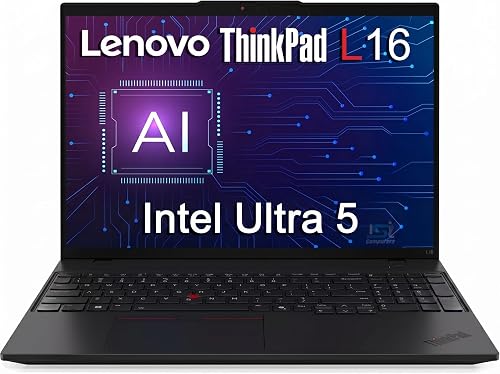
Lenovo ThinkPad L16 (Core Ultra 5): Best for office peripherals
- Intel Core Ultra 5 225U
- 16-inch WUXGA IPS display
- Two Thunderbolt 4 ports
- Ethernet and number pad
The 16-inch screen, number pad and Ethernet suit a fixed office desk. This configuration is described with seller-upgraded memory and storage, so confirm the exact setup and warranty before buying.
Pros
- Large screen and number pad
- Two Thunderbolt 4 ports plus Ethernet
- Windows 11 Pro
Cons
- Computer has been resealed for upgrades
- Configurations vary across the product range
The ThinkPad L16 fits a fixed office desk where a large screen, number pad and wired accessories matter. It has a 16-inch WUXGA IPS display, a backlit keyboard and Ethernet, plus two Thunderbolt 4 ports and HDMI.
It includes an Intel Core Ultra 5 225U and Windows 11 Pro. Memory and storage options vary across this range, and the computer was resealed for upgrades, so confirm the exact configuration and warranty before you buy.
The ports can suit a desk with several displays or a wired network connection. Its number pad is a practical plus for accounting, data entry and long spreadsheet sessions.
Choose it if desk connections and a large screen matter more than carrying comfort. Skip it if you need a specific memory or storage setup but can’t confirm which configuration you’ll receive.
Best laptop for work on a stationary desk
HP OmniBook 3 17.3-inch (Core Ultra 5, 8GB, 512GB): Best for stationary big screens
- 17.3-inch Full HD IPS display
- Intel Core Ultra 5 225U
- 8GB DDR5 memory
- 512GB SSD
The 17.3-inch screen gives documents and video calls more room on a stationary desk. Its 8GB memory is the lowest in this group, so check whether that fits your usual apps.
Pros
- Largest display in this group
- Full HD camera
- 512GB SSD
Cons
- 8GB memory may limit heavier multitasking
- Large screen is less suited to frequent commuting
The HP OmniBook 3 is the large-screen choice for a desk with room for a 17.3-inch laptop. Its Full HD IPS display gives documents and video calls more space than the 14-inch options.
It has 8GB memory and a 512GB SSD. That smaller amount of memory may suit lighter work with a few apps open, but it leaves less room for heavier multitasking.
The HP includes a Full HD camera with HDR auto-switch and noise reduction for calls. Its screen size and camera make it a fit for someone who stays at one desk and takes regular meetings.
Choose it if you value a large display and your apps are not memory-heavy. Skip it if you commute often, work with many apps at once or want 16GB memory.
Best laptop for work with everyday office basics
Lenovo V15 (Ryzen 5, 16GB, 512GB): Best for everyday office basics
- AMD Ryzen 5 7520U
- 16GB DDR5 memory
- 512GB SSD
- 15.6-inch FHD anti-glare display
The 15.6-inch screen, number pad and Windows 11 Pro cover common office tasks such as documents, spreadsheets and video calls. It also has HDMI, USB-C and Ethernet.
Pros
- 16GB memory and 512GB SSD
- Number pad and privacy-shutter webcam
- Ethernet and HDMI
Cons
- Computer has been resealed for upgrades
- Seller warranty covers the upgraded system
The Lenovo V15 suits documents, spreadsheets, web work and video calls. Its 15.6-inch anti-glare FHD display gives you a mid-size workspace, and the number pad is useful for frequent data entry.
The configuration pairs 16GB DDR5 memory and a 512GB SSD with Windows 11 Pro. Ethernet, HDMI and USB-C cover common desk connections, while the webcam has a privacy shutter.
This computer was resealed for upgrades, and the seller provides a warranty for the upgraded system. Confirm the configuration and warranty details before you order.
Choose it if you want a Windows laptop with a number pad and useful office connections. Skip it if you need a smaller carry-around model or want to avoid a seller-upgraded configuration.
What should a work laptop have?
A work laptop should have enough memory for your daily apps, enough storage for your files and the connections your desk requires. For many people, 16GB memory and a 512GB SSD are a practical starting point for documents, calls and several browser tabs.
Think about your busiest workday rather than the easiest one. If you regularly keep a video call, spreadsheets, email and many browser tabs open at once, allow more room for multitasking than you would for a laptop used mainly for email and document editing.
Storage needs depend on where your files live. A 512GB SSD can suit cloud-based work and typical office documents, while the Acer’s 1TB drive makes more sense if you keep a large archive on the laptop.
A number pad helps if you enter figures often. Ethernet and HDMI can reduce the number of adapters you need at a desk, while USB-C or Thunderbolt connections may fit a setup built around compatible accessories.
Our guide to how much storage a laptop needs can help you estimate the space your files require. For a closer look at memory, read how much RAM you need in a laptop.
Which screen size works best for office work?
A 14-inch screen is easier to carry, while a 16-inch or 17.3-inch display gives you more room at a fixed desk. The right size depends on how often you move and whether you already use an external monitor.
If you work at different locations during the week, a smaller laptop can be simpler to pack and set up. A 14-inch model can still work well at a desk if you connect a larger monitor when you need more space.
A larger built-in screen can help with side-by-side windows, spreadsheets and long documents. It also takes up more desk space and can be less convenient in a bag, so measure your work area and usual carry bag before choosing.
Consider the display’s shape as well as its size. The 16:10 screens in several picks provide more vertical space than a traditional widescreen layout, which can reduce scrolling through long documents.
Is a Mac or Windows laptop better for a small business?
The better operating system is the one that runs your required apps and fits your workplace support. The MacBook Air suits an office that uses macOS, while the other picks use Windows.
Before buying for a team, check the software you use for accounting, scheduling, communication and file sharing. Also confirm that printers, monitors and other accessories work with the operating system and connections you choose.
For an office with more than one laptop, a consistent setup can make it easier to share files and help colleagues. If some people need Windows-only programs and others rely on macOS, decide whether supporting both systems fits your budget and workflow.
The MacBook Air may be a natural fit if your office already uses Macs and iPhones. A Windows model may make more sense when a workplace’s software, equipment or IT support is built around Windows.
How should you set up a new work laptop?
A useful setup starts with the accounts, updates and work tools you need before you move your files. If you want a detailed walkthrough, use our guide to setting up a new laptop step by step.
First, connect to a trusted network and finish the operating system setup. Install available system updates, then sign in to the work accounts and apps you need.
Use a strong sign-in method and set a screen lock for when you step away. On a laptop with a fingerprint reader or camera shutter, check how those features work and use them in a way that fits your office’s privacy needs.
Install only the work apps you recognize and need. Add printers, external displays and other accessories one at a time, so it’s easier to spot which connection or setting needs attention.
Before your first busy day, open your usual files and join a video call. Check that the camera, microphone, keyboard shortcuts and external display arrangement work as expected.
What mistakes should you avoid when buying a work laptop?
The most common mistake is choosing a laptop by its processor name or screen size alone. Start with the apps and accessories you use, then check the memory, storage, operating system and ports against that routine.
Don’t assume every office app runs the same way on every operating system. Confirm that the software your team depends on is available and supported for the Mac or Windows device you plan to buy.
Another mistake is buying a large screen for a laptop that you carry every day. A 17.3-inch display may be comfortable at a fixed desk, but a smaller model is easier to move between locations.
Don’t treat a maximum battery figure as a promise for your particular workday. Video calls, display brightness, wireless use and open apps can affect how long you work between charges.
For seller-upgraded computers, check the exact memory and storage configuration, plus who handles warranty service. The ThinkPads, Dell and Lenovo V15 in this roundup have upgrade disclosures that make those details worth confirming.
Finally, don’t pay for a feature you won’t use. If your work is mainly documents, email and calls, a clear screen, comfortable keyboard and dependable software fit may matter more than AI features or extra storage.
How do you care for a work laptop?
A few simple habits can keep your laptop ready for daily work. Carry it in a padded bag, keep food and drinks away from the keyboard, and avoid blocking the vents while you work.
Use a stable surface for long work sessions. If you connect an external monitor or several accessories, arrange the cables so they don’t pull on the laptop’s ports when you move it.
Keep important files backed up to your workplace’s approved storage. A laptop’s SSD is useful for local work, but it should not be the only place you keep files you cannot replace.
Clean the screen gently with a soft, suitable cloth and follow the maker’s care instructions. Our guide to cleaning a laptop screen safely explains how to avoid common cleaning mistakes.
For longer stretches away from your desk, adjust screen brightness and close apps you aren’t using. See how to make laptop battery last longer for more practical power tips.
Which laptop should you choose for work?
Choose the MacBook Air if you want a portable Mac and your office apps work on macOS. Pick the Dell Pro 14 if a Windows office needs Ethernet and several kinds of desk connections.
Choose the ThinkPad E16 or ThinkPad L16 for a larger Windows workspace with a number pad. The E16 fits spreadsheet work, while the L16 suits a fixed desk where ports and peripherals matter.
Pick the ASUS Vivobook 14 if you want a compact Windows laptop with a backlit keyboard. Choose the Acer Aspire 14 AI if you travel with work files and want 1TB of storage.
The HP OmniBook 3 fits a stationary desk where a large display matters more than carrying comfort. The Lenovo V15 is a straightforward option for everyday office work with a number pad and common wired connections.
The best laptop for work is the one that fits your software, daily workload and desk setup. Make a short list of the apps, screen size and connections you need, then compare it with what to look for when buying a laptop before choosing.
Our top 3 picks at a glance
-
1
Best for portable Apple work
Apple MacBook Air 13-inch M5 (16GB, 512GB)
9.3/10 our score
See it on Amazon -
2
Best for large Windows desks
Lenovo ThinkPad E16 Gen 3 (Ryzen 7, 16GB, 512GB)
8.9/10 our score
See it on Amazon -
3
Best for compact Windows multitasking
ASUS Vivobook 14 Copilot+ PC (Ryzen AI 7)
8.8/10 our score
See it on Amazon
Frequently asked questions
What is the best laptop for work in a small office?
The Apple MacBook Air 13-inch M5 is a strong fit if your office uses macOS apps and you want a compact screen with 16GB memory and 512GB storage. For Windows, consider the Dell Pro 14 for its Ethernet and varied ports, or a ThinkPad if you want a 16-inch display and number pad.
Match the operating system to the software your team already uses.
How much memory does a work laptop need?
For everyday office work with documents, email, video calls and several browser tabs, 16GB is a useful target. This roundup includes one 8GB option, the HP OmniBook 3, which may suit lighter workloads but leaves less room for heavy multitasking.
See our guide to how much RAM a laptop needs for more context.
Is a 14-inch or 16-inch laptop better for office work?
A 14-inch laptop is easier to fit in a bag and works well if you move between desks. A 16-inch screen gives spreadsheets and side-by-side windows more room, but the larger body takes up more desk and bag space.
Choose based on how often you travel and whether you use an external monitor.
Should a small office choose a Mac or Windows laptop?
Choose a Mac if your team relies on macOS apps or uses iPhones and Macs together. Choose Windows if your office software, accessories or workplace support are built around Windows.
Before buying for a team, check that each required app works on the operating system you plan to use.