ASUS Vivobook 15 Review: Worth It? (November 2026)
The ASUS Vivobook 15 is a solid buy for everyday school and office work if you accept Windows 11 in S mode and a 128GB drive. The Vivobook Go 15 scores higher here for most people, because its memory runs faster and Windows 11 Home is already active out of the box.
On this page (8 sections)
The ASUS Vivobook 15 is a good everyday laptop for school, office and home use, with a caveat. It arrives with Windows 11 Home in S mode, so you start with Store-only apps until you switch out.
If that restriction would annoy you on day one, the Vivobook Go 15 is the easier buy. Most ASUS Vivobook 15 laptop reviews fixate on the processor, but the software mode and the small drive matter more in daily use.
This review walks through the specs that affect you, the setup steps, the trade-offs and the alternatives worth a look before you spend.
The ASUS Vivobook 15 at a glance
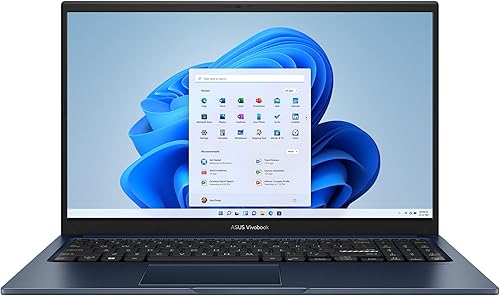
The Vivobook 15 F1504ZA-AS34 pairs a 12th Gen Intel Core i3 with a 15.6-inch full HD screen. It's a plain, light laptop aimed at people who need a reliable screen and keyboard more than speed.
ASUS sells it in Quiet Blue and lists it at 3.75 lb and 0.7 inches thick. The 15.6-inch FHD display uses ultra-slim NanoEdge bezels, so the frame stays thin around the picture.
That matters when you're reading documents or watching video on a lap tray. The hinge opens flat to 180 degrees, which helps when you share the screen across a desk.
A physical webcam shield covers the front camera when you're not on a call. ASUS also says the chassis meets the US MIL-STD 810H military-grade standard.
Treat that as ASUS's durability claim rather than a promise your bag drop will be kind. The Quiet Blue finish won't shout for attention in a lecture hall.
Pick the laptop for the screen and keyboard first and the color last. Inside, the graphics are integrated Intel UHD Graphics rather than a separate card.
The whole machine runs as a standard laptop form factor with a front camera and no touchscreen named in the specs. It ships with the power cord, adapter and user manual in the box.
ASUS Vivobook 15 Laptop: Best for locked-down school use
- 15.6 in FHD display
- Intel Core i3-1215U processor
- 8GB DDR4 RAM
- 128GB SSD
An Intel Core i3 model with a six-core chip and Windows 11 Home in S mode. It fits homes and schools that want tighter app control.
Pros
- Six-core Intel Core i3-1215U processor
- ASUS AI noise-canceling for calls
- Webcam shield on a 180° hinge
- Number pad in the ErgoSense keyboard
Cons
- Windows 11 Home in S mode limits app installs until you switch out
- Wi-Fi 5 and Bluetooth 4.1
- 128GB drive leaves little room for large files
Who the ASUS Vivobook 15 suits best
This model fits students and home users who live in a browser and a word processor. Writing essays, building slides, email and video calls all sit within reach of a six-core Core i3 and 8GB of memory.
Buy it if your school or workplace hands out Windows machines and expects Windows 11 in its default configuration. The S mode start means you install from the Microsoft Store first, which suits a family that wants tighter control over what lands on the machine.
The 15.6-inch screen is also a good size for split-screen work without straining to read small type. The ErgoSense keyboard's number pad is another argument for it in a home office, since spreadsheets and data entry go faster with a keypad.
Skip it if you need to install desktop apps outside the Store straight away. Gamers, video editors and anyone who keeps a large photo library should look elsewhere.
If you're still weighing brands rather than models, our guide to whether ASUS laptops are good for home and school covers the wider range. The machine is also a reasonable second computer for a household that already has a main desktop.
It handles the couch and kitchen table jobs without competing for the big screen.
The specs that matter in daily use
The six-core Intel Core i3-1215U runs at 1.2 GHz base and up to 4.4 GHz, with 10MB of cache. For browsing and office work that's enough headroom.
The 8GB of DDR4 memory keeps several tabs and a video call open together. Storage is a 128GB M.2 NVMe PCIe 3.0 SSD, which makes startup and app launches quick.
The screen is a 1920 x 1080 LED panel, and the keyboard is an ErgoSense chiclet layout with a number pad. That number pad helps with spreadsheets and data entry, and it's a small feature many rivals skip at this level.
Ports cover USB 3.2 Gen 1 Type C, USB 3.2 Gen 1 Type A, USB 2.0 Type A and HDMI 1.4. Wi-Fi 5 and Bluetooth 4.1 handle wireless, so a Wi-Fi 6 router won't run at full speed.
ASUS AI Noise-Canceling Technology filters background sound from your voice on calls. The audio output covers both speakers and headphones.
For a deeper look at memory and storage choices, our laptop specs and care section explains what each part does. One spec worth reading closely is the storage type.
An NVMe PCIe 3.0 SSD is faster than the older SATA drives in budget laptops, so the system feels responsive even with the modest capacity. The memory standard is DDR4, which is the older generation than the DDR5 in the Vivobook Go 15.
For everyday tasks the gap is small, but it's one of the reasons the Go model edges ahead on paper.
Setting up the ASUS Vivobook 15
Plan about half an hour for first setup and a little longer for updates. Plug in the power adapter, then follow the Windows 11 Home screens.
The first decision is the S mode one.
Stay in S mode if you only want Store apps. To leave it, open the Microsoft Store and choose the option to switch to Windows 11 Home.
The move is free and one-way, so think about it before you commit. Once Windows finishes installing updates, the machine will likely restart a few times.
Set up a backup early. A 128GB drive fills faster than most people expect, and a USB drive or cloud account takes minutes to configure.
Save large files to the cloud rather than the local disk. If you use a monitor at a desk, connect it over HDMI 1.4 and keep the laptop's Type C port free for charging or a USB-C hub.
Register the laptop with ASUS so the warranty record is in your name. The laptop also comes with a one month trial for new Microsoft 365 customers.
That's a useful window for setting up Word and Excel before you decide whether to subscribe. If your school or employer already provides Microsoft 365, skip the trial and sign in with that account instead.
The ASUS AI Noise-Canceling feature is worth checking in your first call, since it works on the microphone input and needs no extra app install in most cases. A first login, a Microsoft account and a few updates are all the machine asks of you.
Caring for the screen, hinge and battery
Treat the 180-degree hinge as a convenience, not a handle. Open the lid from the center so the pressure spreads evenly.
Wipe the screen with a soft microfiber cloth and avoid sprays that drip into the bezels.
Keep the webcam shutter closed when the laptop is in a bag. The battery is a lithium-ion cell, so shallow top-ups are kinder than running it flat every day.
Charge it to full before a long class or flight, and let it cool before packing it away. Use the adapter it ships with rather than a random phone charger.
Clear the vents now and then so dust doesn't build up. If the laptop starts to slow, check storage first: a nearly full 128GB drive drags on everything.
The Quiet Blue finish wipes clean with a damp cloth, so a sleeve in the bag does most of the protection work. If you carry it daily, a padded sleeve costs little and saves the corners.
ASUS's support pages list the exact maintenance steps for the F1504ZA series. One more habit helps: shut the lid before you lift the laptop, rather than carrying it open by the screen edge.
Small routines like that keep the hinge and display lasting longer.
The trade-offs to weigh before you buy
The biggest trade-off is Windows 11 Home in S mode, which limits you to Microsoft Store apps until you switch out. For a school laptop that's a feature; for a home user who wants a specific program on day one, it's a hurdle.
Storage is the second. A 128GB SSD covers the operating system, a browser and a modest set of apps, but a photo or video habit outgrows it quickly.
The screen's brightness is modest in the Vivobook family, so avoid sitting beside a bright window. The Wi-Fi 5 and Bluetooth 4.1 combo is older than what many new laptops offer.
And the 3.75 lb weight is fine for a backpack, though it's heavier than the Vivobook Go 15. The Core i3's six cores are spread across a mix of performance and efficiency designs, so heavy multitasking still shows its limits.
A dozen browser tabs plus a video call is fine; a large spreadsheet recalculating in the background starts to feel slow. The number pad layout also pushes the main keyboard slightly left of center, which some typists notice for the first week.
None of these are dealbreakers for the price tier. They just tell you who the machine is for.
Compare the memory type and storage sizes against your habits before you decide. A rival in the same class offers different answers, and our ASUS vs Acer laptop comparison puts the two side by side.
Alternatives worth comparing
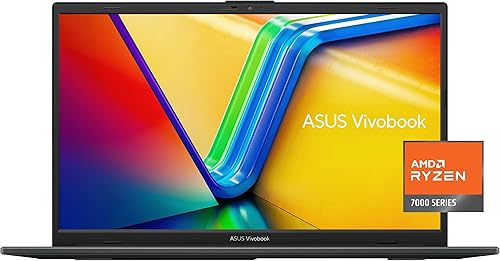
The Vivobook Go 15 is the better buy for most people because it solves two of this model's weak points in one move. It runs an AMD Ryzen 3 7320U processor with 8GB of DDR5 memory and ships with Windows 11 Home already active.
There's no S mode step. Its 15.6-inch screen matches the size here.
ASUS lists a 45% NTSC color gamut and 250-nit sustained brightness, so expect a similar feel. The E1504FA-AS33 also brings a 180-degree hinge, a 720p camera with a privacy shutter and SonicMaster speakers.
Its Wi-Fi 5 and Bluetooth 5.1 cover the same wireless basics. It weighs 3.59 lb, a touch lighter than the Vivobook 15.
The AMD Ryzen 3 7320U is built for thin laptops and pairs with integrated Radeon Graphics, which is a sensible match for the same browsing and office work this review covers. A 60Hz refresh rate on the NanoEdge panel keeps scrolling smooth without adding cost.
If you want the simplest start and faster memory, this is the pick.
ASUS Vivobook 14: the smaller sibling
The Vivobook 14 makes sense if you carry a laptop all day. A 14-inch screen saves bag space and weight against the 15.6-inch models here.
The smaller display means less room for split-screen work, so it's a fit for commuters rather than desk workers. Read our full ASUS Vivobook 14 laptop review for the specs and who it suits.
If you mostly work at a desk with an external monitor, the size gap matters less than the price gap. In that case the 15.6-inch models here are the safer bet.
Acer Aspire 3 Slim: the budget rival
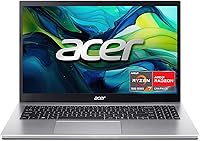
The Acer Aspire 3 Slim competes on the same everyday tasks at a lower tier. It's the machine to compare when the Vivobook 15's S mode start feels too restrictive or when you want a different brand at the budget end.
Our Acer Aspire 3 review covers its specs, setup and limits. The ASUS vs Acer breakdown helps if you're torn between the two brands.
Read both before you commit, because the differences show up in ports, memory and the software you start with rather than in raw speed.
Verdict: is the ASUS Vivobook 15 worth buying?
Buy the ASUS Vivobook 15 if you want a dependable everyday Windows laptop and don't mind S mode or a 128GB drive. It covers essays, email, calls and spreadsheets without fuss.
The number pad, flat hinge and webcam shield are practical touches that make daily use easier.
Our score weighs specs, features and buyer feedback against what you're shopping for. The two real caveats are storage and software.
Plan to switch out of S mode and lean on cloud storage from the first week. If either sounds like a chore, pick the Vivobook Go 15 instead: it's the top scorer here for most people.
Our ASUS Vivobook 15 laptop reviews page keeps this verdict current as models change. The decision rule is simple.
Choose this one for locked-down school use or when S mode doesn't bother you. Choose the Vivobook Go 15 for faster memory and a normal Windows start.
Choose the Acer Aspire 3 Slim only if budget rules and the trade-offs fit.
Frequently asked questions
Is the ASUS Vivobook 15 good for students?
It is a good fit for students who mostly write, browse and join video calls. The six-core Intel Core i3-1215U and 8GB of DDR4 memory handle those tasks, though the 128GB drive fills quickly with large files and games.
What does Windows 11 Home in S mode mean on this laptop?
In S mode you can only install apps from the Microsoft Store. You can switch to regular Windows 11 Home at no cost through the Store, but the move is one-way, so you cannot go back to S mode afterward.
Can you upgrade the memory or storage on the ASUS Vivobook 15?
The 8GB of DDR4 memory and 128GB M.2 SSD are the parts most people would want to change. If you plan to open the case, ask ASUS support about your exact model number first, since the warranty terms matter more than the upgrade itself.
How does the ASUS Vivobook 15 compare with the Vivobook Go 15?
The Vivobook Go 15 runs an AMD Ryzen 3 7320U with DDR5 memory and ships with Windows 11 Home already active. The Vivobook 15 uses an Intel Core i3-1215U with DDR4 memory and Windows 11 Home in S mode, so its app choices start narrower.
Does the ASUS Vivobook 15 have a backlit keyboard?
The model number F1504ZA-AS34 lists an ErgoSense chiclet keyboard with a number pad. A backlight is not named in the features, so confirm it with the seller if typing in dim rooms matters to you.